Basic setup
Install the app, answer six questions, connect your game and drive. This page walks through each step.
What you need #
- A Windows PC. airaceGP is a Windows desktop app.
- Assetto Corsa Competizione or F1 25.
- A microphone and headphones or speakers.
- An AI provider. The recommended one is free: an Ollama Cloud key. You can also run a model on your own PC with Ollama and no key.
- An internet connection for cloud AI, and once for each language pack you download.
Install #
Public download coming soon
The packaged Windows app is not public yet. Until it is, the app runs from its source folder with Python, as below.
From the app's source folder (airacee\airacee), install the dependencies and start the desktop window:
rem in airacee\airacee
pip install -r requirements.txt
python desktop.py
desktop.py starts the engineer and opens the dashboard in its own window. To run without
the window, start run.py and open the dashboard in a browser at
http://127.0.0.1:6969:
python run.py
rem optional: --no-voice (no microphone), --tick-seconds 40, --silence-seconds 2.5
The dashboard port (6969) can be changed in Settings → Network. The designed neural engineer voice is optional and not installed by default; the app speaks with Piper without it.
First run #
The first time the app opens, a short wizard sets it up. Every answer can be changed later in Settings, and Skip closes the wizard.
- App language. Pick one of the nine languages for the interface.
- Your engineer's language. The same as the app, or a different one. This is the language you hear on the radio.
- Which game? Assetto Corsa Competizione, F1 25 with the 2026 Season Pack format, or F1 25 with the classic 2025 format. Older F1 games are listed as unverified.
- Connect a provider. Paste a key for at least one provider. Ollama Cloud and Groq are shown first, recommended to start; List more providers shows the rest. Then answer If your first provider fails: Try the next one or Stay quiet. The wizard shows the order it will save before you continue.
- How should they talk? Talkativeness (only when it matters, balanced, keep me talking) and how often they check in (now and then, regularly, frequently: every 60, 40 or 20 seconds).
- Offline language pack. Only when your engineer speaks a language other than English: the translation pack downloads so it works trackside with no internet. It keeps downloading in the background if you continue.
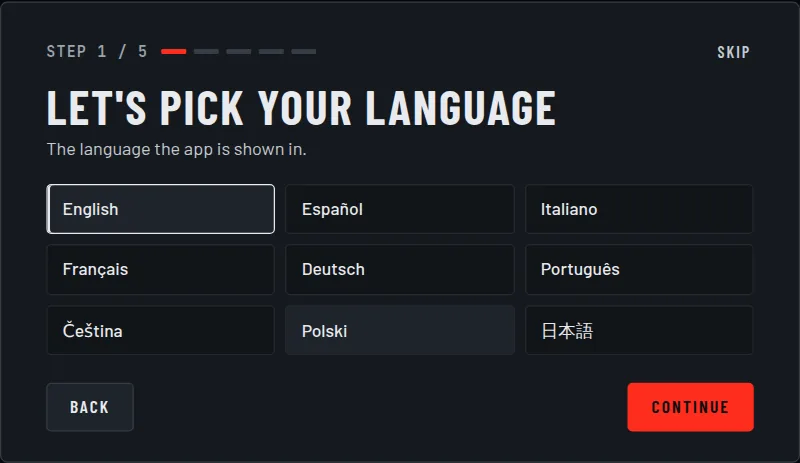
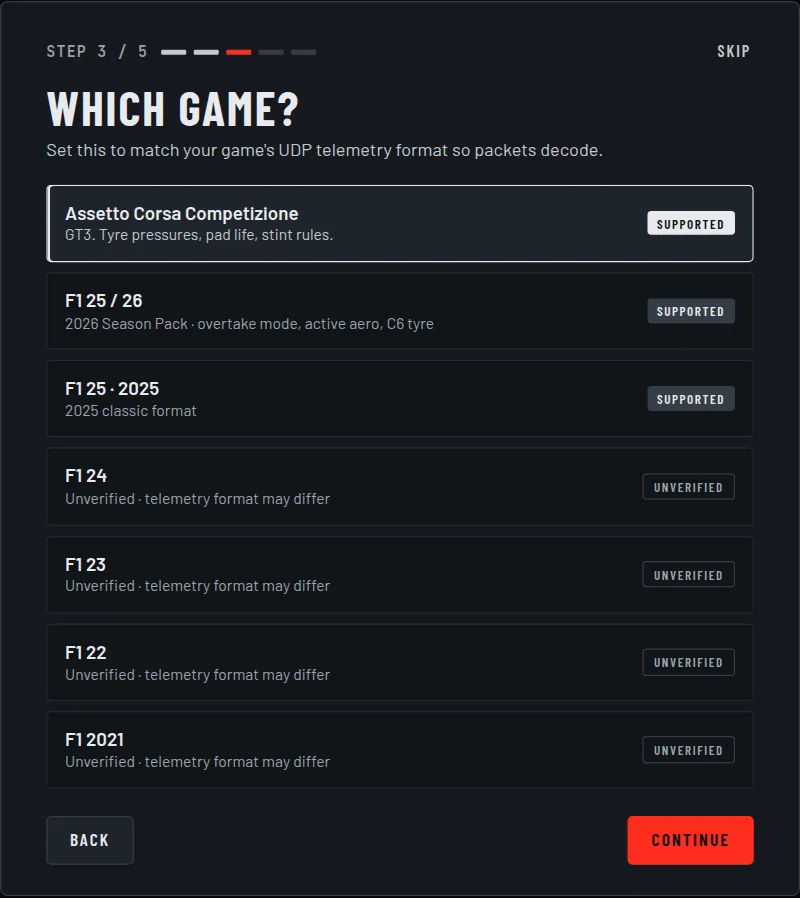
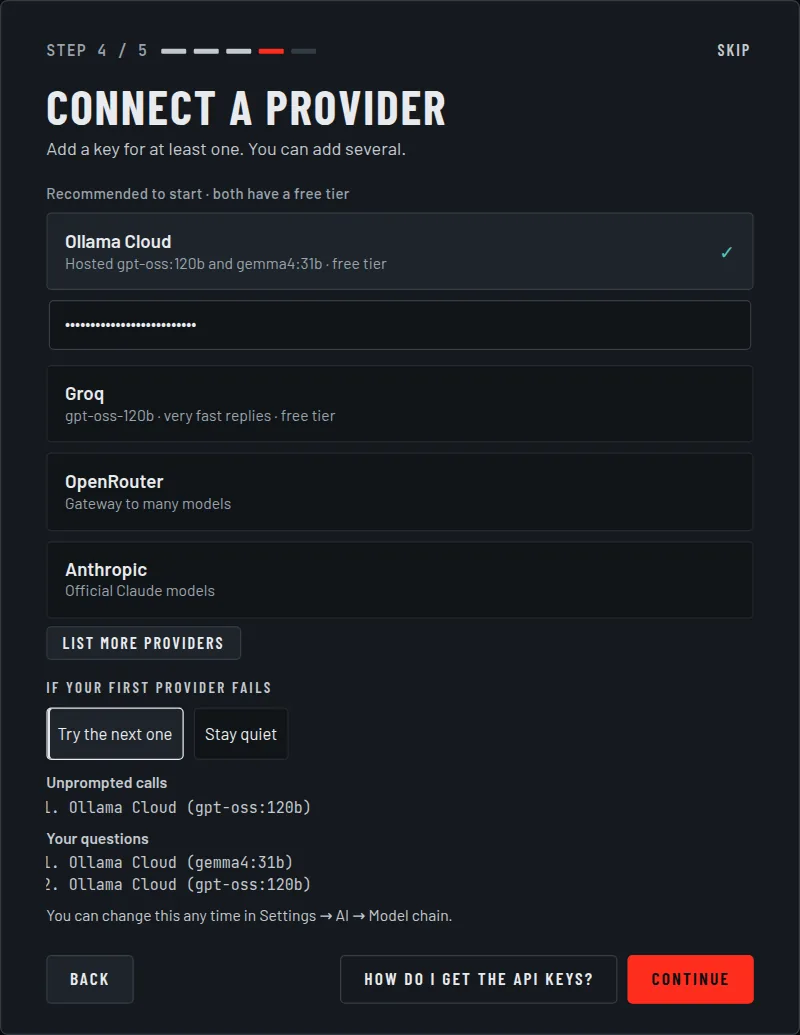
.env; below it, the fallback question and the chain the wizard will save.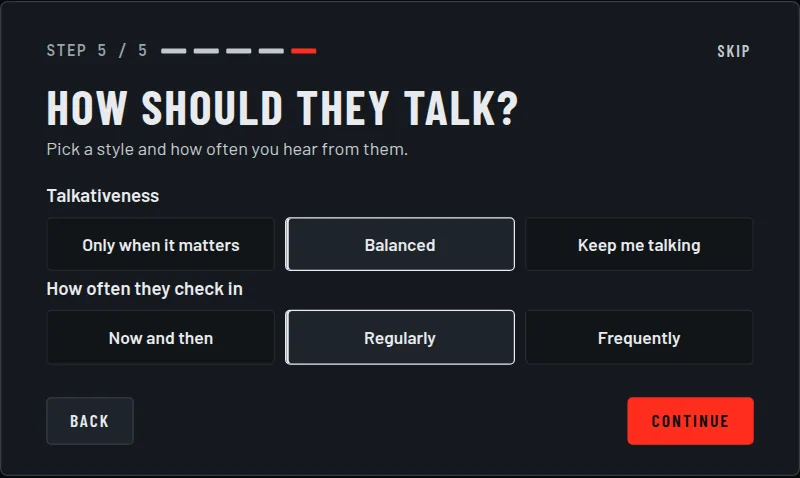
Connect Assetto Corsa Competizione #
- Choose Assetto Corsa Competizione in the wizard, or later in Settings → Telemetry → Sim, then restart the app. It starts its ACC reader by itself.
- Start ACC and get on track. ACC publishes nothing while you are in the menus. Shared memory needs no game settings.
- Optional check, from the app folder while you are on track:
It should end withCommand prompt
python acc_run.py --selftestALL SYSTEMS GOOD. A corner that readsSUSPECTmeans a misaligned read, not a bad setup; report it.
Live timing (optional)
Shared memory does not carry gaps, standings or other drivers' names. ACC's Broadcasting API does. To use it:
- Open Documents\Assetto Corsa Competizione\Config\broadcasting.json.
The app expects ACC's shipped values:
ACC reads this file only when it starts, so restart the game after editing it.broadcasting.json
{ "updListenerPort": 9000, "connectionPassword": "asd", "commandPassword": "" } - Turn on Settings → AI → Live timing (gaps and rivals).
If you use a different port or connection password, set broadcast_port and
broadcast_password to match in the app's web_config.json. The connection is
listen-only: the app has no code that can send a command to the game.
What ACC does not provide
- No tyre wear figure. Tyres are judged on pressures and core temperatures.
- No safety car data. The engineer will not claim one either way.
- No gaps without the Broadcasting API. The app computes them from track position.
Connect F1 25 #
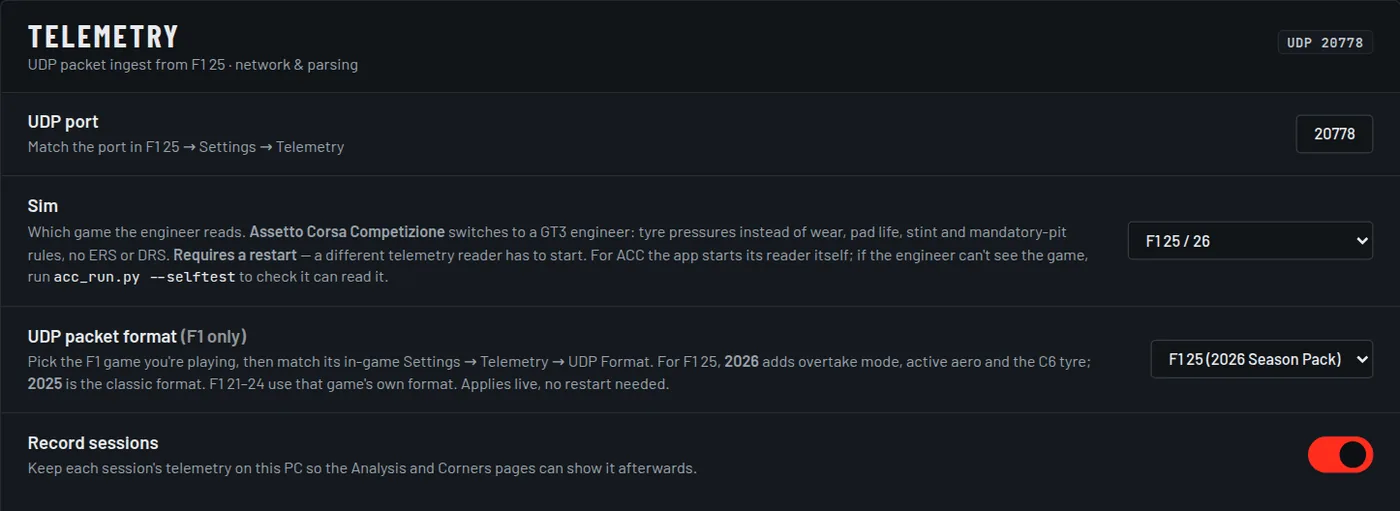
- In F1 25, open Settings → Telemetry Settings and set:
Setting Value UDP Telemetry On UDP IP Address 127.0.0.1when the app runs on the same PC; otherwise that PC's addressUDP Port 20778UDP Format 2025, or the 2026 Season Pack format - In the app, set Settings → Telemetry → UDP packet format to the same format as the game: F1 25 (2026 Season Pack) or F1 25 (2025 classic). This applies without a restart.
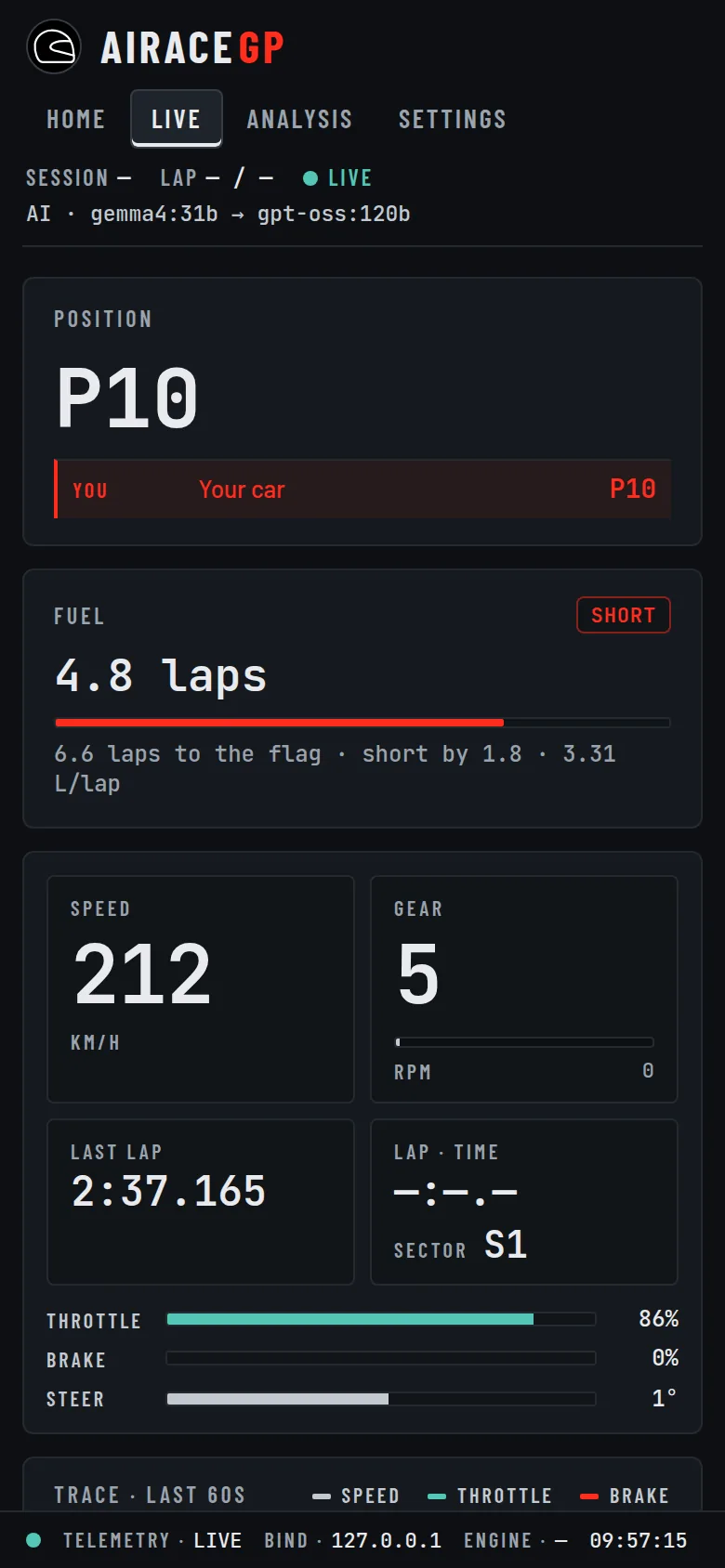
- Drive. The status bar at the bottom of the app reads Telemetry · Live while packets arrive.
Talking to the engineer #
There is no button to hold. The microphone listens for your voice while telemetry is live: speak, and when you stop for about 2.5 seconds the recording is transcribed and answered. The microphone is released completely while the app is paused, the mic is muted, or no telemetry is arriving.
- Interrupting. Speak over the engineer and it stops talking and listens. The
loudness that counts as an interruption is
interrupt_rmsinweb_config.json; raise it if game audio cuts the engineer off. - Wake word. Optional, off by default: turn on Settings → Voice → Wake word ("hey Bono"). Say "hey Bono" and the engineer answers "Yes?" at once. It runs offline with Vosk.
- Transcription. Settings → Audio → Transcription engine: Local runs faster-whisper on your PC (sizes tiny to medium; bigger is more accurate and uses more CPU), Groq cloud is fast and accurate but needs a Groq key. Without a Groq key, or if a Groq call fails, it uses Local.
- Devices. Settings → Audio picks the microphone, the speaker and the voice volume, with a Test button.
- Mute and pause. Mute Mic is on the Home page and in the radio panel on the Live page; Pause is on the Home page.
Languages #
The app language (the interface) and the engineer language (the radio) are set separately, in the wizard or in Settings → Language. The model always answers in English and the line is translated on your PC. Each language's pack downloads once and then works offline. If translation is not available, you hear English.
Dashboard on your phone #
Turn on Settings → Network → Host dashboard on local network, then open
http://<your PC's IP>:6969 on a phone on the same Wi-Fi. Keys, restarts and model
downloads work only on the PC running the app; from another device they are refused with
AIR-503.